

Morse code Translator
OBJECTIVE
To design and simulate a system using Arduino that translates alphanumeric text input into Morse code, which is represented by dots (.) and dashes (-). The system will then output the Morse code using audible signals (buzzer).
MODULES REQUIRED
- Arduino uno
- Lcd 16x2 i2c
- Push button
- Buzzer
Morse code images
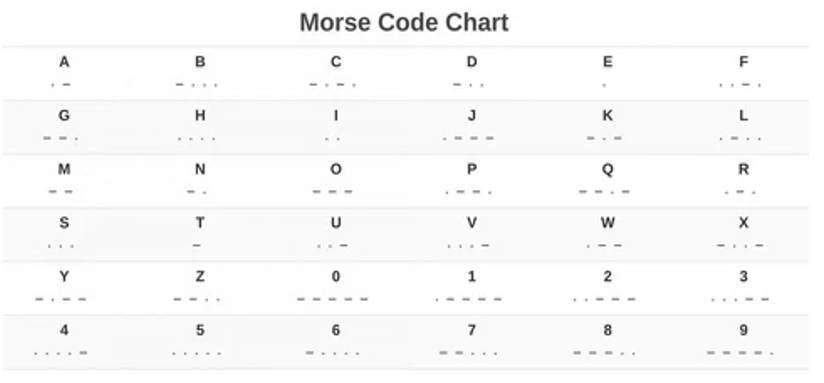
SCHEMATIC DIAGRAM
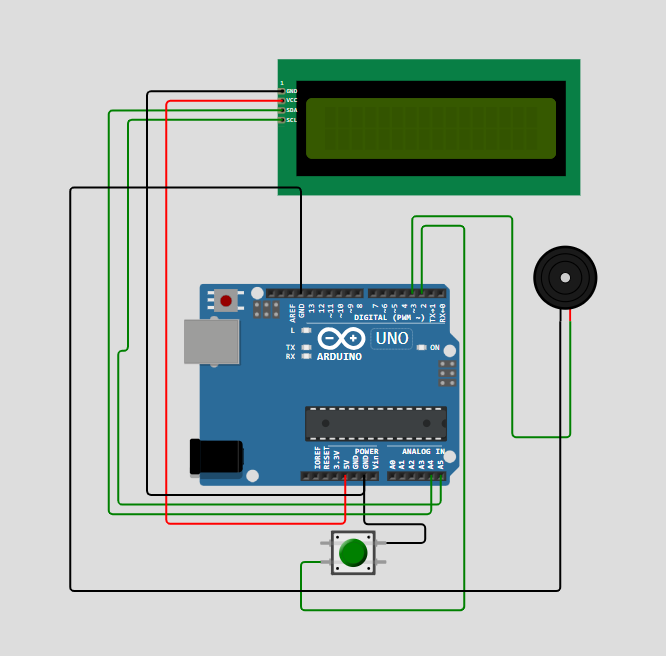
SCHEMATIC CONNECTION
Connect LCD :
Connect push button :
Connect Buzzer:
To begin your project, click this template link:
ARDUINO CODE
#include (Wire.h)
#include (LiquidCrystal_I2C.h)

LiquidCrystal_I2C lcd(0x27, 16, 2); // I2C address 0x27, 16 columns and 2 rows
const int dotButtonPin = 2;       // Connect the dot button to digital pin 2
const int dashButtonPin = 3;      // Connect the dash button to digital pin 3
const int confirmButtonPin = 4;   // Connect the confirm button to digital pin 4
const int buzzerPin = 5;          // Connect the piezo buzzer to digital pin 5

int dotButtonState = 0;        // Variable to store the dot button state
int dashButtonState = 0;       // Variable to store the dash button state
int confirmButtonState = 0;    // Variable to store the confirm button state
String morseCode = "";         // Variable to store the Morse code sequence

// Morse code to letter mapping (using uppercase for comparison)
const char* morseAlphabet[] = {".-", "-...", "-.-.", "-..", ".", "..-.", "--.", "....", "..", ".---", "-.-", ".-..", "--", "-.", "---", ".--.", "--.-", ".-.", "...", "-", "..-", "...-", ".--", "-..-", "-.--", "--..",".----","..---","...--","....-",".....","-....","--...","---..","----.","-----"};

// Character lengths in milliseconds: dot, dash, and space
const int dotLength = 200;
const int dashLength = dotLength * 3;
const int spaceLength = dotLength * 7;

void setup() {
  Serial.begin(9600);  // Initialize serial communication

  pinMode(dotButtonPin, INPUT_PULLUP);
  pinMode(dashButtonPin, INPUT_PULLUP);
  pinMode(confirmButtonPin, INPUT_PULLUP);
  pinMode(buzzerPin, OUTPUT);

  lcd.begin(16, 2);
  lcd.setBacklight(HIGH);
  lcd.print("Morse Code");
  lcd.setCursor(0, 1);
  lcd.print("Translator");
  delay(2000);
  lcd.clear();
  lcd.setCursor(0,0);
  lcd.print("BNSS");
  lcd.setCursor(0,1);
  lcd.print("Have Fun Peace!");
  delay(5000);
  lcd.clear();
  Serial.println("LCD Initialized");
}

void loop() {
  dotButtonState = digitalRead(dotButtonPin);
  dashButtonState = digitalRead(dashButtonPin);
  confirmButtonState = digitalRead(confirmButtonPin);

  if (dotButtonState == LOW) {
    tone(buzzerPin, 1000, 100); // Short tone for dot
    morseCode += ".";
    delay(200); // debounce delay
    Serial.println("Dot Button Pressed");
  }

  if (dashButtonState == LOW) {
    tone(buzzerPin, 1000, 100); // Short tone for dash
    morseCode += "-";
    delay(200); // debounce delay
    Serial.println("Dash Button Pressed");
  }

  if (confirmButtonState == LOW) {
    interpretMorseCode(morseCode);
    delay(200); // debounce delay
    morseCode = ""; // Reset Morse code sequence after confirmation
    Serial.println("Confirm Button Pressed");
  }
}

void interpretMorseCode(String morseCode) {
  for (int i = 0; i < 36; i++) {
    if (morseCode == morseAlphabet[i]) {
      if (i < 26) {
        lcd.print(char('A' + i));
      } else if (i < 36) {
        lcd.print(char('0' + i - 26)); // Print numbers
      }
      //lcd.print(char('A' + i));
      lcd.display();
      delay(1000);
      //lcd.clear();
      Serial.println("LCD Updated");
      return;
    }
  }

  // Handle incorrect or incomplete code
  Serial.println("Unknown Morse Code");
  lcd.print("X");
  lcd.display();
  delay(1000);
  lcd.clear();
}