

ESP32-Based Manual Relay Control System using Push Buttons
OBJECTIVE
To develop an ESP32-based system that enables manual switching of four electrical loads using separate push buttons, each linked to a corresponding relay.
MODULES REQUIRED
- Esp-32
- 4 push buttons
- 4 relays
- 4 leds
SCHEMATIC DIAGRAM
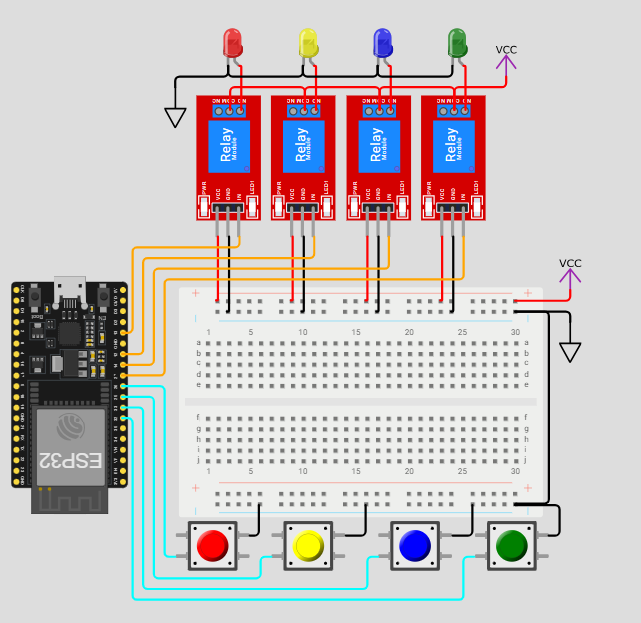
SCHEMATIC CONNECTION
Connect Relay 1 :
Connect Relay 2 :
Connect Relay 3 :
Connect Relay 4 :
Connect push buttons:
Connect leds:
To begin your project, click this template link:
ARDUINO CODE
#define button1_pin 26
#define button2_pin 25
#define button3_pin 33
#define button4_pin 32

#define relay1_pin 13
#define relay2_pin 12
#define relay3_pin 14
#define relay4_pin 27

int relay1_state = 0;
int relay2_state = 0;
int relay3_state = 0;
int relay4_state = 0;

void setup() {
  // put your setup code here, to run once:
  Serial.begin(115200);
  Serial.println("Hello, ESP32!");

  //--------------------------------------------------------------------
  pinMode(button1_pin, INPUT_PULLUP);
  pinMode(button2_pin, INPUT_PULLUP);
  pinMode(button3_pin, INPUT_PULLUP);
  pinMode(button4_pin, INPUT_PULLUP);
  //--------------------------------------------------------------------
  pinMode(relay1_pin, OUTPUT);
  pinMode(relay2_pin, OUTPUT);
  pinMode(relay3_pin, OUTPUT);
  pinMode(relay4_pin, OUTPUT);
  //--------------------------------------------------------------------
  //During Starting all Relays should TURN OFF
  digitalWrite(relay1_pin, LOW);
  digitalWrite(relay2_pin, HIGH);
  digitalWrite(relay3_pin, LOW);
  digitalWrite(relay4_pin, HIGH);
}

void loop() {
  // put your main code here, to run repeatedly:
  listen_push_buttons();
  delay(10); // this speeds up the simulation
}

void listen_push_buttons(){
    //--------------------------------------------------------------------------
    if(digitalRead(button1_pin) == LOW){
      delay(200);
      control_relay(1);
    }
    //--------------------------------------------------------------------------
    else if (digitalRead(button2_pin) == LOW){
      delay(200);
      control_relay(2);
    }
    //--------------------------------------------------------------------------
    else if (digitalRead(button3_pin) == LOW){
      delay(200);
      control_relay(3);
    }
    //--------------------------------------------------------------------------
    else if (digitalRead(button4_pin) == LOW){
      delay(200);
      control_relay(4);
    }
    //--------------------------------------------------------------------------
}

void control_relay(int relay){
  //------------------------------------------------
  if(relay == 1){
    relay1_state = !relay1_state;
    digitalWrite(relay1_pin, relay1_state);
    Serial.print("Button1 State = ");
    Serial.println(digitalRead(button1_pin));
    Serial.print("Relay1 State = ");
    Serial.println(relay1_state);
    delay(50);
  }
  //------------------------------------------------
  else if(relay == 2){
    relay2_state = !relay2_state;
    digitalWrite(relay2_pin, relay2_state);
    Serial.print("Relay2 State = ");
    Serial.println(relay2_state);

    delay(50);
  }
  //------------------------------------------------
  else if(relay == 3){
    relay3_state = !relay3_state;
    digitalWrite(relay3_pin, relay3_state);
    Serial.print("Relay3 State = ");
    Serial.println(relay3_state);
    delay(50);
  }
  //------------------------------------------------
  else if(relay == 4){
    relay4_state = !relay4_state;
    digitalWrite(relay4_pin, relay4_state);
    Serial.print("Relay4 State = ");
    Serial.println(relay4_state);
    delay(50);
  }
  //------------------------------------------------
}