

DIY Arduino Calculator
OBJECTIVE
To design and simulate a basic calculator using Arduino that performs arithmetic operations through a keypad and displays results on an LCD..
MODULES REQUIRED
- Arduino uno
- Lcd 16X 2
- Keypad
- Resistors
SCHEMATIC DIAGRAM
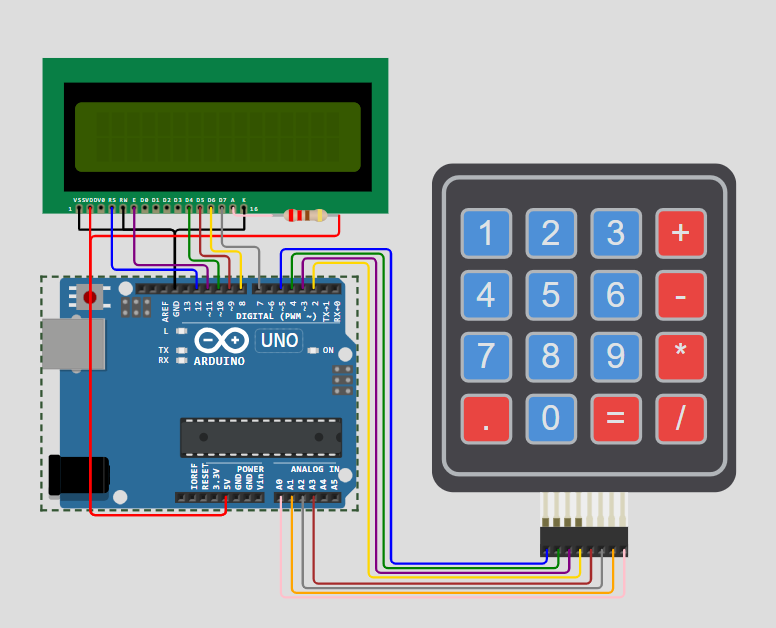
SCHEMATIC CONNECTION
Connect Lcd:
Connect Keypad :
To begin your project, click this template link:
ARDUINO CODE
#include (LiquidCrystal.h)
#include (Keypad.h)
#include (Servo.h)

/* Display */
LiquidCrystal lcd(12, 11, 10, 9, 8, 7);

/* Keypad setup */
const byte KEYPAD_ROWS = 4;
const byte KEYPAD_COLS = 4;
byte rowPins[KEYPAD_ROWS] = {5, 4, 3, 2};
byte colPins[KEYPAD_COLS] = {A3, A2, A1, A0};
char keys[KEYPAD_ROWS][KEYPAD_COLS] = {
  {'1', '2', '3', '+'},
  {'4', '5', '6', '-'},
  {'7', '8', '9', '*'},
  {'.', '0', '=', '/'}
};

Keypad keypad = Keypad(makeKeymap(keys), rowPins, colPins, KEYPAD_ROWS, KEYPAD_COLS);

uint64_t value = 0;

void showSpalshScreen() {
  lcd.print("GoodArduinoCode");
  lcd.setCursor(3, 1);
  String message = "Calculator";
  for (byte i = 0; i < message.length(); i++) {
    lcd.print(message[i]);
    delay(50);
  }
  delay(500);
}

void updateCursor() {
  if (millis() / 250 % 2 == 0 ) {
    lcd.cursor();
  } else {
    lcd.noCursor();
  }
}

void setup() {
  Serial.begin(115200);
  lcd.begin(16, 2);

  showSpalshScreen();
  lcd.clear();
  lcd.cursor();

  lcd.setCursor(1, 0);
}

char operation = 0;
String memory = "";
String current = "";
uint64_t currentDecimal;
bool decimalPoint = false;

double calculate(char operation, double left, double right) {
  switch (operation) {
    case '+': return left + right;
    case '-': return left - right;
    case '*': return left * right;
    case '/': return left / right;
  }
}

void processInput(char key) {
  if ('-' == key && current == "") {
    current = "-";
    lcd.print("-");
    return;
  }

  switch (key) {
    case '+':
    case '-':
    case '*':
    case '/':
      if (!operation) {
        memory = current;
        current = "";
      }
      operation = key;
      lcd.setCursor(0, 1);
      lcd.print(key);
      lcd.setCursor(current.length() + 1, 1);
      return;

    case '=':
      float leftNum = memory.toDouble();
      float rightNum = current.toDouble();
      memory = String(calculate(operation, leftNum, rightNum));
      current = "";
      lcd.clear();
      lcd.setCursor(1, 0);
      lcd.print(memory);
      lcd.setCursor(0, 1);
      lcd.print(operation);
      return;

  }

  if ('.' == key && current.indexOf('.') >= 0) {
    return;
  }

  if ('.' != key && current == "0") {
    current = String(key);
  } else if (key) {
    current += String(key);
  }

  lcd.print(key);
}

void loop() {
  updateCursor();

  char key = keypad.getKey();
  if (key) {
    processInput(key);
  }
}